What Is a Forex VPS & How to Set Up a Forex VPS?
Forex trading requires a reliable trading environment, especially when using automated trading systems, Expert Advisors (EAs), or platforms such as MetaTrader 4 (MT4) and MetaTrader 5 (MT5). However, keeping a personal computer running 24/7 can be inconvenient and may lead to interruptions caused by power failures, internet disconnections, or unexpected system restarts.
A Forex VPS (Virtual Private Server) provides a practical solution by allowing traders to run their trading platforms on a remote server that remains online around the clock. With a properly configured Forex VPS, traders can maintain their trading applications, execute automated strategies, and access their trading environment remotely.
In this guide, we will explain what a Forex VPS is, how it works, its benefits, how to choose the right server, and how to set up a Forex VPS step by step.
What Is a Forex VPS?
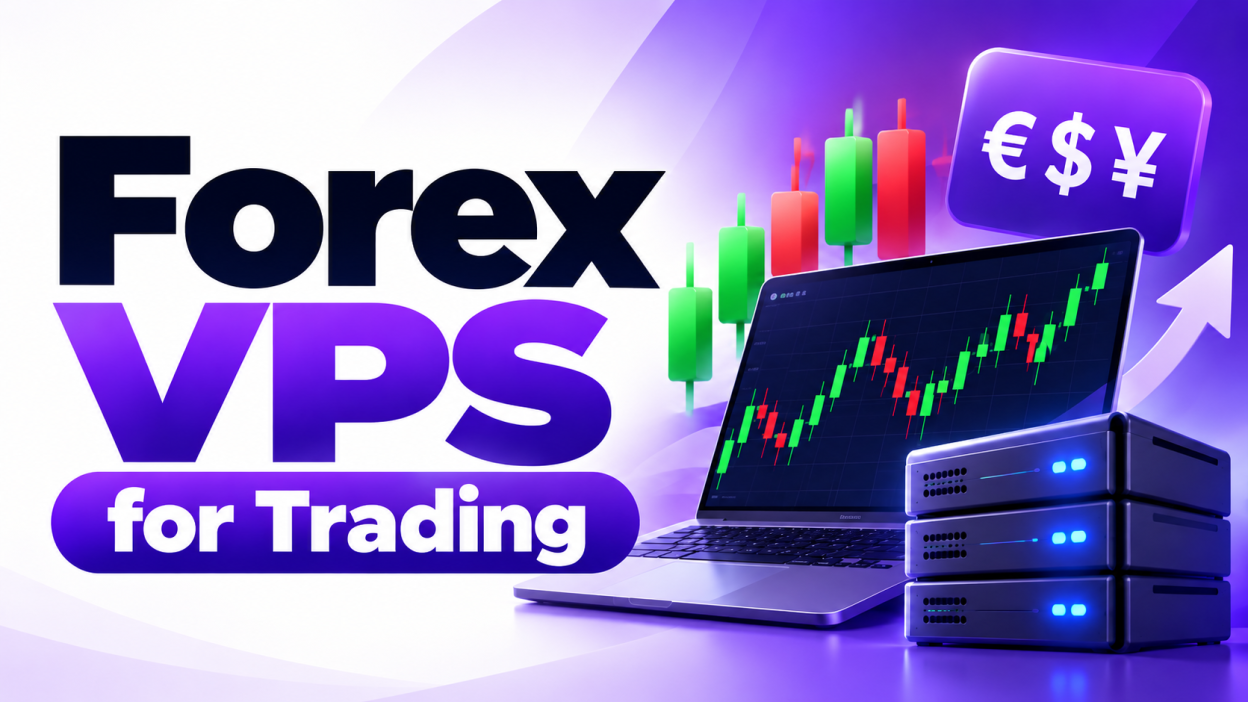
A Forex VPS is a virtual server designed to run forex trading software continuously over a remote internet connection. Instead of running MetaTrader on your personal computer, you install and operate it on a VPS hosted in a professional data center.
You can connect to the server from your Windows PC, Mac, laptop, or compatible mobile device using a remote desktop application.
A Forex VPS typically includes:
- Dedicated resources: Allocated CPU cores, RAM, and storage for your virtual server.
- 24/7 availability: The server can continue running even when your personal computer is switched off.
- Remote access: Manage your trading applications from almost anywhere.
- Stable connectivity: Data-center networking can provide a more consistent connection than a home internet connection.
- Windows compatibility: Many Forex VPS plans support Windows Server, which is compatible with popular trading platforms.
A Forex VPS does not guarantee profitable trades or eliminate market risks. Its primary purpose is to provide a more reliable environment for running trading software.
How Does a Forex VPS Work?
A Forex VPS operates like a remote computer hosted in a data center. Once you connect to the server, you can install your trading platform, log in to your broker account, and configure your trading tools.
The process generally works as follows:
- You purchase a Forex VPS from a hosting provider.
- The provider supplies the server IP address, username, and initial password.
- You connect to the server using Remote Desktop Protocol (RDP) or another supported remote access tool.
- You install MT4, MT5, or compatible trading software.
- You log in to your broker account and configure your charts, indicators, and Expert Advisors.
- You leave the VPS running so that your trading applications can continue operating when your personal computer is offline.
The trading platform still needs a working connection to your broker, and your trading strategy must be configured correctly. A VPS cannot prevent every application crash, network issue, broker outage, or trading loss.
Benefits of Using a Forex VPS
1. Run Trading Platforms 24/7
A Forex VPS allows your trading platform to remain running without requiring your home computer to stay switched on. This is especially useful for traders who use automated strategies or Expert Advisors.
2. Support Automated Forex Trading
Automated trading systems often require MetaTrader to remain open and connected. A VPS provides an environment where EAs can continue processing market data and submitting orders according to their programmed rules, subject to platform, broker, and network availability.
3. Reduce Connection Interruptions
Home internet connections can experience outages, and computers may restart unexpectedly. Hosting your trading software in a data center can reduce dependence on your local power supply and internet connection.
4. Access Your Trading Environment Remotely
You can connect to your Forex VPS from different devices and locations. This makes it easier to check trades, modify settings, review logs, or manage your trading applications while travelling.
5. Choose a Server Near Your Broker
Network latency is the time it takes for data to travel between your VPS and the broker’s trading server. Selecting a suitable server location can help reduce latency and improve responsiveness.
However, the lowest-latency location depends on the actual broker server, network routing, and infrastructure. The country alone does not determine connection quality.
6. Keep Trading Separate from Your Personal Computer
A VPS gives your trading applications a separate computing environment. It can help organize trading software and reduce reliance on your everyday computer, although appropriate security practices are still necessary.
Forex VPS vs. Regular VPS
A Forex VPS is generally a VPS marketed or configured for trading applications. A regular VPS can also run MT4 or MT5 if it meets the software’s operating system and hardware requirements.
| Feature | Forex VPS | Regular VPS |
|---|---|---|
| Main purpose | Forex trading applications | General hosting and computing |
| MT4/MT5 support | Commonly offered | Depends on OS compatibility |
| 24/7 operation | Yes, while running and available | Yes, while running and available |
| Broker-oriented locations | May be available | Depends on provider |
| Trading-focused support | May be offered | Usually general server support |
| Performance | Depends on actual resources and infrastructure | Depends on actual resources and infrastructure |
When comparing providers, focus on actual server performance, latency to your broker, uptime history, Windows licensing, support, and backup options rather than the Forex VPS label alone.
How to Choose the Right Forex VPS
Before purchasing a Forex VPS, consider the number of trading platforms you intend to run, the resource requirements of your Expert Advisors, and the location of your broker’s server.
Recommended Forex VPS Specifications
The following specifications are a starting point, not a guarantee that every trading setup will run smoothly.
| Trading workload | Suggested starting configuration |
|---|---|
| One lightweight MT4/MT5 instance | 2 vCPU, 2–4 GB RAM |
| Multiple charts or moderate EA usage | 2–4 vCPU, 4–8 GB RAM |
| Multiple trading platforms or resource-intensive EAs | 4+ vCPU, 8+ GB RAM |
Actual requirements vary depending on the trading platform, chart count, indicators, Expert Advisors, and operating system. Monitor CPU, RAM, and disk usage after installation and upgrade if necessary.
Important Factors to Check
- Server location: Choose a location with good network connectivity to your broker.
- Latency: Test the actual connection to your broker where possible.
- Operating system: Confirm that the offered Windows version supports your trading software.
- CPU and RAM: Make sure the configuration can handle your intended workload.
- Storage: SSD or NVMe storage is generally suitable for responsive application loading and system operations.
- Uptime and support: Review the provider’s service terms and support availability.
- Security: Check whether firewall protection, administrator access, and backup options are available.
- Pricing: Compare the complete cost, including Windows licensing, taxes, backups, and any additional services.
How to Set Up a Forex VPS Step by Step
Setting up a Forex VPS is straightforward if you follow the correct sequence. The steps below assume that you have purchased a Windows VPS with remote desktop access.
Step 1: Purchase a Forex VPS
Choose a hosting provider that offers Windows VPS hosting suitable for your trading applications.
Select a configuration based on your expected workload and choose a server location that provides good connectivity to your broker.
After completing your order, the hosting provider will usually send you the following details:
- VPS IP address
- Username, often
Administrator - Initial password
- Remote desktop port, usually TCP 3389 unless customized
- Operating system and access instructions
Keep these credentials private and change any initial password according to your provider’s instructions.
Step 2: Connect to Your VPS Using Remote Desktop
On a Windows computer:
- Press
Win + Rto open the Run dialog. - Type
mstscand press Enter. - Enter the public IP address of your VPS.
- Click Connect.
- Enter your VPS username and password.
- Accept the certificate prompt only after verifying that you are connecting to the correct server.
You should now see the remote Windows desktop.
On macOS, install a supported Windows App or Remote Desktop client. On mobile devices, use a compatible remote desktop application.
If the connection fails, check the VPS status, IP address, firewall rules, remote desktop configuration, and provider network settings.
Step 3: Secure Your Windows VPS
Before installing trading software, secure the server.
Recommended actions include:
- Change the default administrator password to a strong, unique password.
- Install available Windows security updates and restart when required.
- Enable Windows Firewall and allow only the services you need.
- Restrict RDP access by source IP or VPN when practical.
- Use a non-default RDP port only as an additional measure, not as a replacement for authentication and firewall controls.
- Avoid downloading unknown scripts, indicators, or Expert Advisors.
- Enable multi-factor authentication where supported by your access solution.
- Keep your broker credentials private and never share administrator access unnecessarily.
Do not disable Windows security protections just to make a trading application run. Investigate the compatibility issue and create narrowly scoped exceptions only when justified.
Step 4: Download and Install MetaTrader 4 or MetaTrader 5
Open the browser inside your VPS and visit your broker’s official website or the official MetaTrader website.
Download the version recommended by your broker and complete the installation.
Once installed:
- Launch MT4 or MT5.
- Select the appropriate broker server.
- Log in using your trading account credentials.
- Confirm that the platform connects successfully.
- Check that charts and market prices are updating.
Always verify that the selected trading server matches your broker account. Demo and live accounts may use different servers.
Step 5: Configure Your Trading Platform
After logging in, configure the platform for your trading requirements.
You may need to:
- Open the currency pairs you trade.
- Set up the required charts and timeframes.
- Install compatible indicators.
- Configure notifications and platform preferences.
- Review the platform’s connection status and logs.
Keep the configuration simple initially. Opening unnecessary charts, indicators, and applications can consume extra system resources.
Step 6: Install and Configure Expert Advisors
If you use automated trading, copy your EA files into the appropriate MetaTrader data directory.
In MT4, you can usually open this directory through File → Open Data Folder, then navigate to MQL4 → Experts.
In MT5, use File → Open Data Folder, then navigate to MQL5 → Experts.
Next:
- Copy the EA files into the appropriate Experts folder.
- Restart the platform or refresh the Navigator panel.
- Attach the EA to the required chart.
- Configure its inputs carefully.
- Enable algorithmic trading only if appropriate.
- Check the Experts and Journal logs for errors.
Some EAs require additional files, DLL permissions, licensing, or specific settings. Enable DLL imports only when you trust the EA and understand its requirements.
Important: Test new strategies in a demo account first. Automated trading can cause substantial losses, and correct VPS setup does not validate a strategy’s performance.
Step 7: Test Your VPS Connection and Performance
Before relying on the VPS for live trading, verify that it works as expected.
Check the following:
- MetaTrader remains connected to the broker.
- Market data updates normally.
- Your EA loads without errors.
- CPU and memory usage remain within reasonable limits.
- The connection to your broker is stable.
- The platform recovers correctly after a planned restart or application relaunch.
You can use the platform’s connection indicators and logs to investigate issues. If latency matters to your strategy, measure it from the VPS to the actual broker trading server rather than relying solely on a generic speed test.
Step 8: Keep the VPS Running
Once your configuration is ready, you can disconnect from Remote Desktop without shutting down the server.
In the Remote Desktop window, choose Disconnect or close the session without selecting Shut down. The VPS and its running applications should continue operating.
Before disconnecting, confirm that MetaTrader is running and your EA is active. Also ensure that Windows updates, scheduled restarts, or power settings will not unexpectedly interrupt your trading setup.
A VPS reduces dependence on your local computer, but it is not a guarantee of uninterrupted operation. Periodically review logs, resource usage, server status, and broker connectivity.
Common Forex VPS Problems and How to Fix Them
Forex VPS Is Not Connecting
Check that the server is online, the IP address is correct, and the remote desktop port is reachable. If the problem continues, contact your VPS provider.
MetaTrader Keeps Disconnecting
Verify the broker server, internet connectivity from the VPS, and the platform’s Journal logs. The issue may originate from the broker, the VPS network, or the trading application.
High CPU or RAM Usage
Close unnecessary applications and reduce the number of resource-intensive charts or indicators. If usage remains high, upgrade the VPS configuration.
Expert Advisor Is Not Trading
Confirm that the EA is enabled, its settings are correct, the market and account permit the intended orders, and the Experts and Journal logs show no errors. Check whether the EA requires additional files or permissions.
High Trading Latency
Measure latency to the actual broker trading server and compare suitable VPS locations. Routing, network congestion, and the broker’s infrastructure can affect results.
VPS Restarts or Trading Stops Unexpectedly
Review Windows update and restart settings, provider maintenance notices, system logs, and application logs. Consider suitable monitoring and backup procedures.
Is a Forex VPS Safe?
A Forex VPS can be a secure environment when configured correctly, but its safety depends on the hosting provider, operating system, access controls, and software you install.
To improve security, use strong credentials, apply updates, restrict remote access, maintain backups, and install trading software only from trusted sources. Avoid storing unnecessary sensitive information on the server.
Remember that a hosting provider can offer infrastructure and availability commitments, but it cannot eliminate market risk, guarantee order execution, or ensure that a broker remains operational.
Frequently Asked Questions (FAQs)
1. What is a Forex VPS used for?
A Forex VPS is used to run trading platforms such as MetaTrader 4 and MetaTrader 5 remotely, helping traders keep automated trading applications online without leaving their personal computers running.
2. Can I run MT4 and MT5 on a Forex VPS?
Yes, provided the VPS operating system, hardware resources, and software configuration meet the platforms’ requirements. You may need additional CPU and RAM to run multiple instances.
3. Can I turn off my computer after setting up a Forex VPS?
Yes. Once the trading platform is running on the remote server, you can switch off your personal computer. The VPS can continue running independently, provided the server and applications remain operational.
4. How much RAM do I need for a Forex VPS?
A small trading setup may work with 2–4 GB of RAM, while multiple platforms or demanding EAs may need 4–8 GB or more. Monitor real-world usage to determine the appropriate configuration.
5. Does a Forex VPS improve trading profits?
No. A VPS can improve the reliability of the trading environment and may reduce network latency when properly located. It does not guarantee profits or eliminate market volatility, slippage, or trading losses.
6. Which location is best for a Forex VPS?
The best location is generally the one that provides reliable, low-latency connectivity to your broker’s actual trading server. Test the available locations rather than choosing solely by country.
7. Can I use a Forex VPS for manual trading?
Yes. You can access your trading platform remotely and manage trades manually. However, whether a VPS is worthwhile depends on your trading frequency, connectivity needs, and budget.
8. Is a Forex VPS available 24/7?
A VPS is designed to operate continuously, but actual availability depends on the provider’s infrastructure, maintenance, and service terms. No hosting service should be assumed to have perfect uptime.
9. Can I use a regular Windows VPS for forex trading?
Yes. A regular Windows VPS can run trading software if it meets the software’s requirements and offers adequate resources and network connectivity.
10. How much does a Forex VPS cost?
The price depends on CPU, RAM, storage, Windows licensing, server location, and support. Compare the full monthly cost and verify that the configuration is appropriate for your trading workload.
Conclusion
A Forex VPS is a useful option for traders who want to run MetaTrader 4, MetaTrader 5, or automated trading applications in a remote environment that can remain online around the clock.
To set up a Forex VPS, purchase a suitable Windows server, connect through Remote Desktop, secure the operating system, install your trading platform, configure your Expert Advisors, and test the connection before relying on it for live trading.
Choose a provider based on performance, broker connectivity, security, support, and transparent pricing. With a properly configured server and a tested trading setup, you can manage your trading environment more conveniently without depending on your personal computer being switched on all the time.