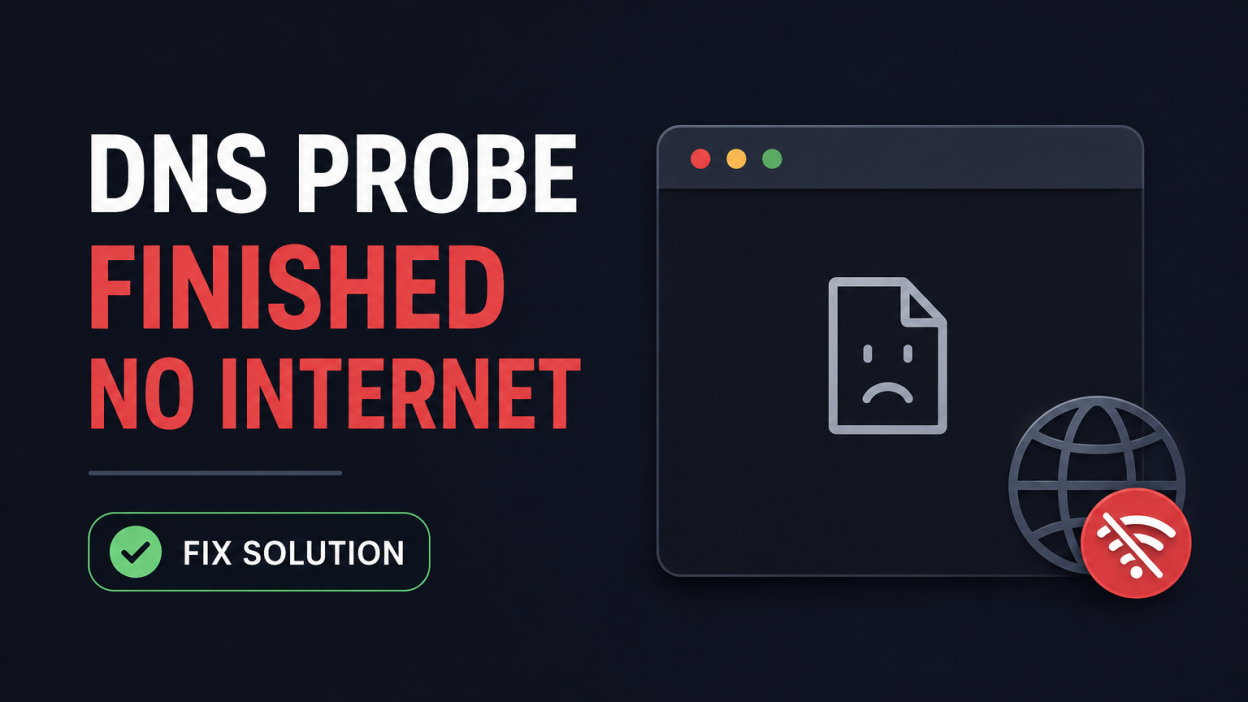
How to Fix DNS PROBE FINISHED NO INTERNET Error
Seeing the DNS PROBE FINISHED NO INTERNET error when trying to open a website in Chrome? Don’t worry. This is a common internet and DNS problem, and in most cases, you can fix it yourself in a few minutes.
This error usually means that your browser cannot connect to the DNS (Domain Name System) server needed to find the website you are trying to visit.
In this guide, we’ll explain what DNS_PROBE_FINISHED_NO_INTERNET means, why it happens, and how to fix the DNS_PROBE_FINISHED_NO_INTERNET error on Windows and other devices.
What Does DNS PROBE FINISHED NO INTERNET Mean?
DNS PROBE FINISHED NO INTERNET is a Chrome error that usually appears when your computer has trouble communicating with a DNS server.
DNS works like the internet’s phonebook. When you type a website address such as example.com, DNS converts the domain name into an IP address that your device can use to connect to the website.
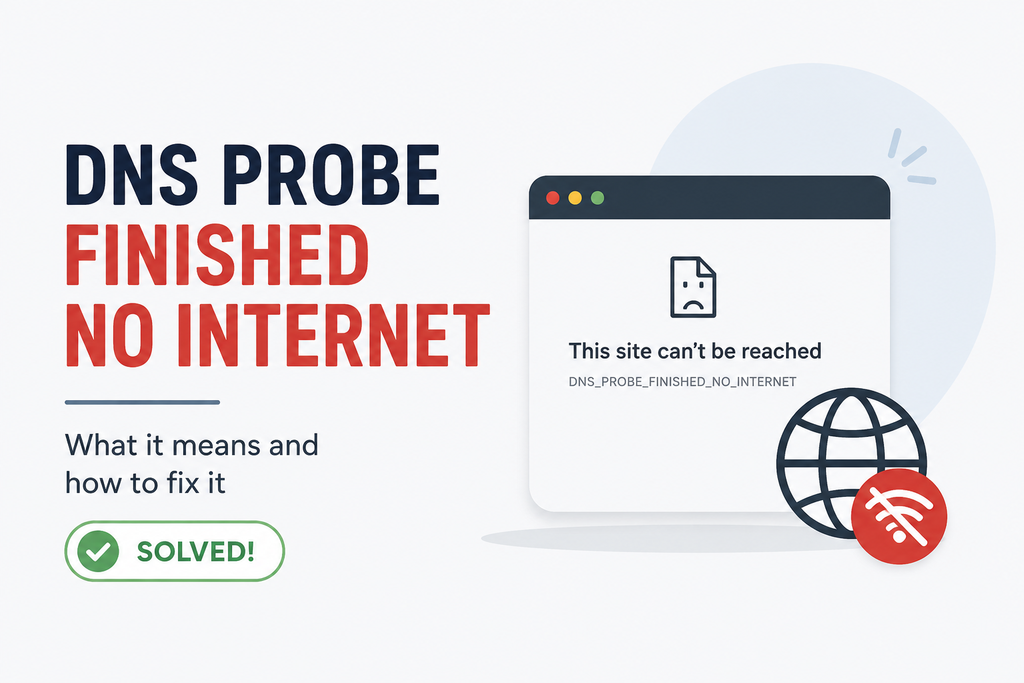
If DNS cannot complete this process, Chrome may show:
DNS PROBE FINISHED NO INTERNET
The problem may be caused by your internet connection, DNS settings, router, browser cache, VPN, firewall, or your ISP’s DNS server.
Why Does DNS PROBE FINISHED NO INTERNET Happen?
There are several possible reasons for this error:
- Your internet connection is unstable or disconnected.
- Your DNS server is not responding.
- DNS cache on your computer is corrupted.
- Your router needs to be restarted.
- Chrome’s DNS cache has outdated information.
- Incorrect network or DNS settings.
- VPN or proxy settings are interfering with the connection.
- Firewall or security software is blocking the connection.
- Your ISP’s DNS server is temporarily unavailable.
- There is a problem with the website’s DNS configuration.
Now let’s look at the easiest ways to fix it.
1. Check Your Internet Connection
Before changing DNS settings, make sure your internet connection is working.
Try opening several different websites.
For example:
- YouTube
- Wikipedia
- Another website you frequently use
If all websites are unavailable, the problem is probably your internet connection or router rather than Chrome.
If other websites work but only one website doesn’t open, the problem may be related to that particular website.
Quick Test
Disconnect and reconnect your Wi-Fi.
If you are using Ethernet, unplug the cable and connect it again.
You can also try using your phone’s mobile hotspot. If the website works through the hotspot, your normal internet connection or DNS server may be the problem.
2. Restart Your Router
Restarting your router is one of the simplest ways to fix DNS problems.
Follow these steps:
- Turn off your router.
- Unplug the power cable.
- Wait about 30 seconds.
- Plug the router back in.
- Wait for the internet connection to return.
- Open Chrome and try the website again.
A router restart can clear temporary network problems and establish a fresh connection with your ISP.
3. Restart Your Computer
Sometimes Windows network services can temporarily stop working correctly.
Simply restart your computer and try accessing the website again.
This is especially useful if the DNS PROBE FINISHED NO INTERNET error appeared suddenly after your computer had been running for a long time.
4. Flush the DNS Cache
One of the most effective solutions is clearing the DNS cache.
Windows stores DNS information to make websites load faster. If this information becomes outdated or corrupted, it can cause DNS errors.
How to Flush DNS on Windows
- Press Windows + R.
- Type
cmd. - Press Ctrl + Shift + Enter to open Command Prompt as administrator.
- Run this command:
ipconfig /flushdns
- Press Enter.
You should see a message similar to:
Successfully flushed the DNS Resolver Cache.
Now restart Chrome and try opening the website again.
5. Renew Your IP Address
If flushing DNS did not solve the problem, try renewing your IP address.
Open Command Prompt as Administrator and run:
ipconfig /release
Then run:
ipconfig /renew
Finally, flush the DNS cache again:
ipconfig /flushdns
Close Command Prompt and restart Chrome.
This forces Windows to obtain a fresh IP configuration from your router.
6. Change Your DNS Server
Your current DNS server may be slow, unavailable, or experiencing problems.
You can try using a public DNS service instead.
Popular options include:
| DNS Provider | Preferred DNS | Alternate DNS |
|---|---|---|
| Google DNS | 8.8.8.8 | 8.8.4.4 |
| Cloudflare DNS | 1.1.1.1 | 1.0.0.1 |
| Quad9 DNS | 9.9.9.9 | 149.112.112.112 |
How to Change DNS on Windows
- Open Settings.
- Go to Network & Internet.
- Select your Wi-Fi or Ethernet connection.
- Open the network properties.
- Find DNS server assignment.
- Select Edit.
- Choose Manual.
- Enable IPv4.
- Enter your preferred DNS server.
- Save the changes.
For example, you can try:
Preferred DNS: 1.1.1.1
Alternate DNS: 1.0.0.1
Open Chrome again and check whether the error has disappeared.
7. Clear Chrome’s DNS Cache
Chrome has its own DNS cache. If it contains incorrect or outdated information, clearing it can help.
Open Chrome and enter:
chrome://net-internals/#dns
Find DNS lookup cache and click:
Clear host cache
Then close and reopen Chrome.
Try visiting the website again.
8. Clear Chrome’s Browser Cache
A corrupted browser cache can sometimes cause website loading problems.
To clear it:
- Open Chrome.
- Press Ctrl + Shift + Delete.
- Select a suitable time range.
- Select Cached images and files.
- Click Delete data.
Restart Chrome and test the website.
You don’t necessarily need to delete your saved passwords.
9. Disable VPN or Proxy
If you are using a VPN or proxy, it may interfere with your DNS connection.
Temporarily disable your VPN and try opening the website again.
You can also check Windows proxy settings:
- Open Settings.
- Go to Network & Internet.
- Select Proxy.
- Temporarily disable any manually configured proxy.
- Restart Chrome.
If the website works after disabling the VPN or proxy, the configuration may be causing the DNS problem.
10. Disable and Re-enable Your Network Adapter
Windows can sometimes experience a temporary problem with the network adapter.
Try this:
- Press Windows + R.
- Type:
ncpa.cpl
- Press Enter.
- Right-click your active Wi-Fi or Ethernet adapter.
- Select Disable.
- Wait a few seconds.
- Right-click it again.
- Select Enable.
Now try loading the website again.
11. Reset Windows Network Settings
If none of the previous methods work, you can reset your network configuration.
Open Command Prompt as Administrator and run:
netsh winsock reset
Then run:
netsh int ip reset
After that, restart your computer.
These commands reset important Windows network components and can fix persistent connectivity problems.
12. Check Your Firewall or Security Software
Firewall and security software can occasionally interfere with network connections.
If you recently installed or updated security software, check whether it is blocking Chrome or DNS traffic.
Do not permanently disable your firewall just to fix this error.
Instead, check its network or application permissions and make sure Chrome is allowed to access the internet.
13. Try Incognito Mode
Chrome extensions can sometimes interfere with websites or network requests.
Open an Incognito window by pressing:
Ctrl + Shift + N
Try opening the website.
If it works in Incognito mode, one of your browser extensions or stored browser data could be causing the problem.
Disable extensions one at a time to find the problematic extension.
14. Check Whether the Website Is Down
Sometimes the problem isn’t your computer at all.
The website you’re trying to visit may have:
- DNS problems
- Server downtime
- Hosting problems
- Expired domain settings
- Incorrect DNS records
- Temporary maintenance
Try opening other websites.
If everything else works but one particular website does not, the website itself may be experiencing a problem.
DNS PROBE FINISHED NO INTERNET Fix: Quick Checklist
If you want the fastest troubleshooting process, try these solutions in order:
- Check your internet connection.
- Restart your router.
- Restart your computer.
- Flush the DNS cache.
- Renew your IP address.
- Change your DNS server to Cloudflare or Google DNS.
- Clear Chrome’s DNS cache.
- Clear Chrome’s browser cache.
- Disable VPN or proxy.
- Reset Windows network settings.
For most users, restarting the router, flushing DNS, renewing the IP address, or changing the DNS server should be enough to resolve the problem.
How to Prevent DNS Errors in the Future
You can reduce the chance of DNS-related problems by keeping your browser and operating system updated.
It’s also helpful to:
- Keep your router firmware updated.
- Avoid unreliable VPN or proxy services.
- Use a reliable DNS provider.
- Restart your router occasionally if it becomes unstable.
- Keep security software updated.
- Remove unnecessary browser extensions.
Frequently Asked Questions
What is DNS PROBE FINISHED NO INTERNET?
DNS_PROBE_FINISHED_NO_INTERNET is a Chrome error that indicates a DNS or network connection problem. Your computer is having trouble resolving or connecting to the website’s address.
How do I fix DNS PROBE FINISHED NO INTERNET quickly?
Start by restarting your router and computer. If that doesn’t work, open Command Prompt as administrator and run ipconfig /flushdns. You can also try changing your DNS server to Cloudflare DNS (1.1.1.1) or Google DNS (8.8.8.8).
Does changing DNS fix DNS PROBE FINISHED NO INTERNET?
It can. If your ISP’s DNS server is unavailable or having problems, switching to a reliable public DNS service such as Cloudflare or Google DNS may resolve the issue.
Is DNS PROBE FINISHED NO INTERNET a virus?
No. The error itself is not a virus. It is generally related to DNS, network configuration, browser settings, or internet connectivity.
Why does Chrome say DNS_PROBE_FINISHED_NO_INTERNET but my internet works?
Your internet connection can be active while DNS is not working correctly. In this situation, your device may be connected to the internet but unable to translate a website’s domain name into its IP address.
Should I restart my router to fix DNS PROBE FINISHED NO INTERNET?
Yes. Restarting your router is a simple first step and can resolve temporary DNS and network connection problems.
Final Thoughts
The DNS PROBE FINISHED NO INTERNET error looks complicated, but it is usually straightforward to fix.
Start with the simple solutions: check your internet, restart your router, flush your DNS cache, and renew your IP address. If the problem continues, try changing your DNS server to Cloudflare or Google DNS.
If only one website is affected while everything else works normally, the issue may be with that website’s DNS or server rather than your computer.
With the troubleshooting steps above, you should be able to identify the cause and get Chrome working normally again.