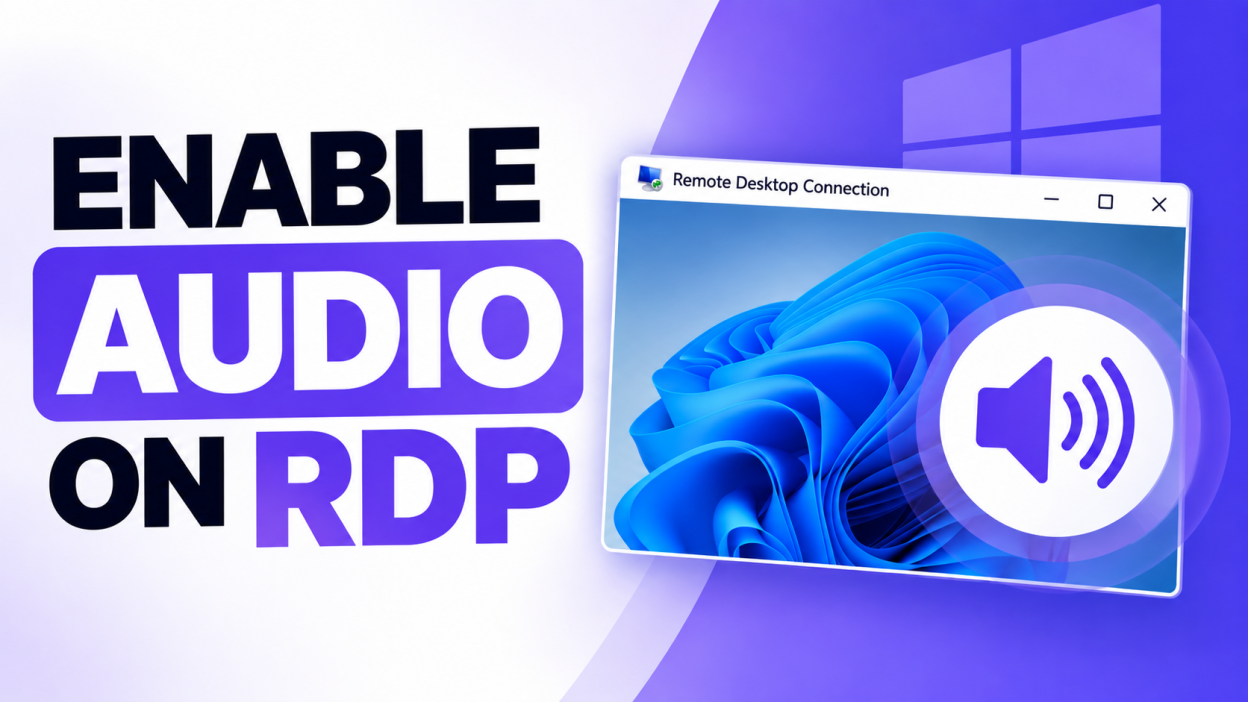
How to Enable Audio on Windows RDP
Windows Remote Desktop Protocol (RDP) allows you to remotely access another Windows computer or server. By default, audio from the remote computer may not always play through your local computer. This can happen because audio redirection is disabled in the RDP client, Windows settings, or the Remote Desktop service.
If you are using a Windows VPS or remote Windows PC and want to hear system sounds, videos, music, browser audio, or application sounds through your local computer, you need to enable Remote Audio.
This guide explains how to enable audio in Windows RDP step by step.
What Is RDP Audio Redirection?
RDP audio redirection allows sound generated by the remote Windows computer to be sent to your local computer through the Remote Desktop connection.
For example, if you connect to a Windows VPS using RDP and play a YouTube video on the VPS, audio redirection can make that sound play through your laptop or desktop speakers.
The feature is commonly called Remote Audio, Audio Playback, or Play on this computer.
Method 1: Enable Audio Before Connecting
The easiest way to enable RDP audio is through the Windows Remote Desktop Connection application.
Step 1: Open Remote Desktop Connection
Press:
Windows + R
Type:
mstsc
Press Enter.
The Remote Desktop Connection window will open.
Step 2: Open Show Options
Click Show Options.
This will display additional RDP connection settings.
Step 3: Open the Local Resources Tab
Click the Local Resources tab.
Look for the Remote audio section.
Click the Settings button.
Step 4: Select Audio Playback
A new window will appear with audio settings.
Under Remote audio playback, select:
Play on this computer
This tells RDP to redirect the sound from the remote Windows computer to your local computer.
Click OK.
Step 5: Connect to the Server
Enter the IP address or hostname of your Windows server.
Enter your username and password.
Click Connect.
After connecting, play an audio or video file on the remote computer and check whether the sound is coming through your local speakers or headphones.
Method 2: Check Windows Remote Audio Settings
If audio is still not working, check the audio device inside the remote Windows machine.
After connecting through RDP:
- Right-click the speaker icon on the Windows taskbar.
- Open Sound settings.
- Check the selected output device.
- Look for a device related to Remote Audio.
Depending on your Windows version, it may appear as:
Remote Audio
or:
Remote Desktop Audio
Make sure the correct output device is selected.
You can also test the audio from Windows sound settings.
Method 3: Enable Audio Redirection in Group Policy
On Windows Server and some Windows editions, Group Policy can control whether audio is redirected through RDP.
If audio redirection has been disabled by Group Policy, change the following settings.
Press:
Windows + R
Type:
gpedit.msc
Press Enter.
Go to:
Computer Configuration → Administrative Templates → Windows Components → Remote Desktop Services → Remote Desktop Session Host → Device and Resource Redirection
Look for:
Allow audio and video playback redirection
Open the setting.
Select:
Enabled or Not Configured
depending on your existing configuration.
Apply the setting and click OK.
Also check:
Do not allow audio redirection
If this setting is enabled, audio redirection is blocked. Set it to Disabled or Not Configured.
After changing Group Policy, reconnect to the RDP session.
Method 4: Restart the Remote Desktop Connection
Sometimes the audio setting is changed after an RDP connection has already been established.
If you enabled audio but still cannot hear anything:
- Disconnect from the RDP session.
- Close Remote Desktop Connection.
- Open
mstscagain. - Go to Show Options → Local Resources → Remote audio → Settings.
- Select Play on this computer.
- Connect again.
Audio redirection settings are applied when the RDP session is established, so reconnecting can resolve the issue.
Check the Local Computer’s Audio
If the remote server is configured correctly but you still cannot hear anything, check your own computer.
Make sure:
- Your speakers or headphones are connected.
- Windows volume is not muted.
- The correct playback device is selected.
- The volume level is high enough.
- Another application can play audio normally.
For example, play a YouTube video locally on your computer. If you cannot hear that either, the problem may be with your local Windows audio rather than RDP.
RDP Audio Is Not Working on a Windows VPS
If you are using a Windows VPS, audio support can depend on the Windows version, VPS configuration, Remote Desktop policies, and the hosting provider’s virtualization environment.
First check the RDP client settings on your computer.
Open:
Remote Desktop Connection → Show Options → Local Resources → Remote audio → Settings
Make sure:
Play on this computer
is selected.
Then check the Remote Desktop policies on the Windows VPS.
If your VPS provider has disabled audio redirection at the server level, you may need to contact their support team.
How to Test RDP Audio
After enabling audio, you can test it quickly.
Inside the remote Windows computer:
- Open a browser.
- Play a video with sound.
- Increase the Windows volume.
- Check your local speakers or headphones.
You can also use Windows’ built-in sound test from the sound settings.
If the test sound plays through your local device, RDP audio redirection is working.
Common Reasons RDP Audio Does Not Work
If you still don’t hear audio, check these common causes:
Audio playback is disabled
Make sure Remote audio playback is set to Play on this computer in the RDP client.
Group Policy is blocking audio
Check the Remote Desktop Services policies for audio redirection.
The remote computer is muted
Check the volume and output device inside the RDP session.
The local computer is muted
Check your laptop or desktop’s volume and audio output device.
The RDP session was not restarted
Disconnect and reconnect after changing audio settings.
Server restrictions
Some Windows VPS providers or server configurations may disable audio redirection.
Conclusion
Enabling audio on Windows RDP is usually simple. The most important setting is the Remote audio playback option in the Remote Desktop Connection client.
The basic process is:
Remote Desktop Connection → Show Options → Local Resources → Remote audio → Settings → Play on this computer
After enabling the option, reconnect to the Windows computer and test the audio.
If audio still doesn’t work, check the Windows sound settings, Remote Desktop Group Policy, local speakers or headphones, and any restrictions applied by your VPS or server provider.
These settings are useful when you need sound from a Windows VPS or remote computer for applications such as video playback, browser audio, presentations, or other programs that require audio output.