How to Fix 500 Internal Server Error
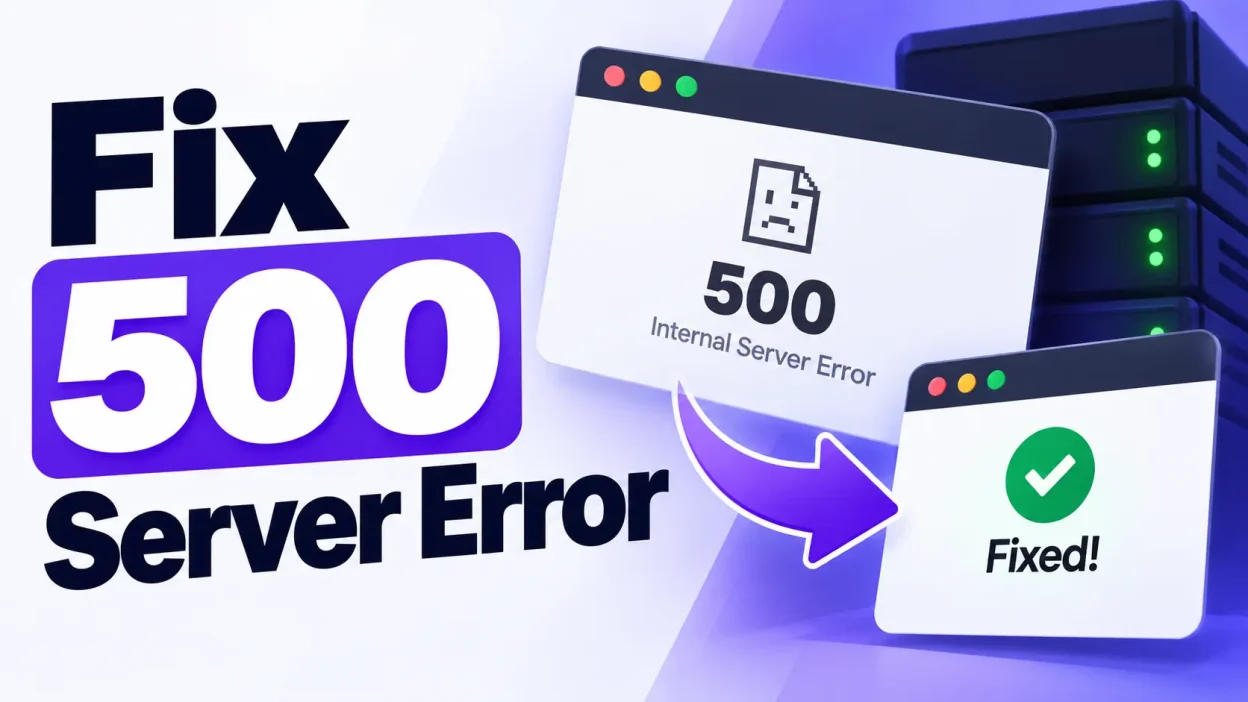
A 500 Internal Server Error is a common server-side error that means your website could not complete a request successfully. The error usually appears when there is a problem with the website’s code, server configuration, PHP settings, plugins, themes, or .htaccess file.
The error can affect WordPress websites, PHP applications, and websites hosted on cPanel or other hosting panels.
This guide explains the most common ways to fix a 500 Internal Server Error.
1. Refresh the Website
First, refresh the page and check whether the error is temporary.
You can also try opening the website in a private or incognito window.
If the website loads normally after refreshing, the issue may have been temporary. If the error continues, proceed with the steps below.
2. Check the .htaccess File
A corrupted or incorrectly configured .htaccess file is one of the common causes of a 500 error, especially on WordPress websites.
If you are using cPanel:
- Log in to cPanel.
- Open File Manager.
- Go to your website’s root directory, usually
public_html. - Enable Show Hidden Files if necessary.
- Find the
.htaccessfile. - Rename it to something such as
.htaccess-old. - Open your website again.
If the website starts working, the .htaccess file was likely causing the problem.
Generate a New WordPress .htaccess
After confirming the issue, log in to your WordPress dashboard and go to:
Settings > Permalinks
Without changing anything, click Save Changes.
WordPress will normally generate a new .htaccess file.
3. Increase the PHP Memory Limit
A website can return a 500 error when a PHP script uses more memory than the server allows.
For WordPress, you can increase the memory limit by adding the following line to wp-config.php:
define('WP_MEMORY_LIMIT', '256M');
Add it before the line:
/* That's all, stop editing! Happy publishing. */
You can also check the PHP memory limit in your hosting control panel.
If your application requires more resources, contact your hosting provider to check whether the server has enough available memory.
4. Check PHP Version
An incompatible PHP version can cause a 500 error.
This commonly happens after changing PHP versions or installing an application that requires a different PHP version.
In cPanel:
- Open MultiPHP Manager or Select PHP Version.
- Select your domain.
- Check the currently assigned PHP version.
- Try a PHP version supported by your website or application.
For WordPress, make sure your themes and plugins are compatible with the selected PHP version.
Do not switch to an outdated PHP version permanently just to fix the error. Use a currently supported PHP version whenever possible.
5. Disable WordPress Plugins
A faulty or incompatible plugin can cause a 500 Internal Server Error.
If you can access the WordPress dashboard:
- Go to Plugins.
- Deactivate all plugins.
- Reload the website.
If the website works after disabling the plugins, activate them one at a time.
When the error returns, the last activated plugin is likely causing the problem.
If You Cannot Access WordPress
You can disable plugins through cPanel File Manager:
- Open
public_html. - Go to
wp-content. - Find the
pluginsfolder. - Rename it to
plugins-old. - Reload your website.
If the website starts working, a plugin is likely responsible.
6. Check the WordPress Theme
A damaged or incompatible theme can also cause a 500 error.
If you can access WordPress, temporarily activate a default WordPress theme.
If you cannot access the dashboard, you can rename the active theme’s folder from:
wp-content/themes/
WordPress may then fall back to an available default theme.
If the website starts working, check the theme for compatibility issues or recent changes.
7. Check File and Folder Permissions
Incorrect file permissions can prevent the web server from accessing required files.
Common WordPress permissions are:
Folders: 755
Files: 644
Avoid setting all files and folders to 777. This can create security problems and is usually unnecessary.
If you recently changed permissions or migrated the website, restore the correct permissions and test the website again.
8. Check the Error Logs
If the previous methods do not solve the problem, check your server’s error logs.
In cPanel, look for:
Metrics > Errors
Depending on your hosting configuration, you may also find logs inside your account’s domain or log directories.
The error log can reveal the exact reason for the 500 error, such as:
- PHP fatal errors
- Memory limit errors
- Permission problems
- Missing PHP extensions
- Invalid
.htaccessdirectives - Plugin or theme errors
- Server configuration problems
For example, an error such as:
PHP Fatal error
usually indicates a PHP, plugin, theme, or application problem.
9. Check Recent Changes
Think about what changed immediately before the error appeared.
Common causes include:
- Installing a new plugin
- Updating WordPress
- Updating a theme
- Changing PHP versions
- Editing
.htaccess - Changing PHP settings
- Uploading new code
- Migrating the website
- Changing server configuration
If the error appeared immediately after a change, temporarily undo that change and test the website.
10. Check PHP Extensions
Some PHP applications require specific PHP extensions.
If a required extension is missing or disabled, the application may generate a 500 error.
In cPanel, open Select PHP Version and check the available PHP extensions.
Common extensions used by PHP applications include:
mysqli
curl
mbstring
xml
zip
gd
intl
The exact requirements depend on your application.
11. Check Server Resource Usage
A website may return a 500 error when the hosting account reaches its resource limits.
Check your hosting panel for:
- CPU usage
- RAM usage
- Entry processes
- I/O usage
- Number of processes
- Disk space
- Inode usage
If the account is regularly reaching its limits, you may need to optimize the website or upgrade the hosting resources.
12. Restore a Working Backup
If the error started after a major change and you cannot identify the cause, restoring a recent working backup can be an effective recovery method.
Before restoring, make sure you have a backup of the current website and database if possible.
After restoration, identify what caused the original issue before making the same changes again.
13. Contact Your Hosting Provider
If you have checked the website files, PHP configuration, plugins, themes, and logs but the error continues, the problem may be related to the server.
Provide your hosting provider with:
- Your domain name
- The approximate time the error started
- Recent changes you made
- The error log
- Any relevant PHP error message
The hosting provider can then check server-level logs and configuration that may not be accessible from your hosting account.
Conclusion
A 500 Internal Server Error does not usually identify the exact problem by itself. The cause can be anything from a corrupted .htaccess file to a PHP error, plugin conflict, incorrect permissions, or server resource limitation.
For WordPress websites, start by checking the .htaccess file, plugins, theme, PHP version, memory limit, and error logs. For other PHP applications, check the application logs, PHP configuration, required extensions, and server resources.
The most important step is to check the error log. It usually provides the information needed to identify the actual cause instead of making random configuration changes.